 Baton
Baton Chapter 2
The window
Baton puts three columns on screen and keeps them there: what you have, what you are editing, and what came back.
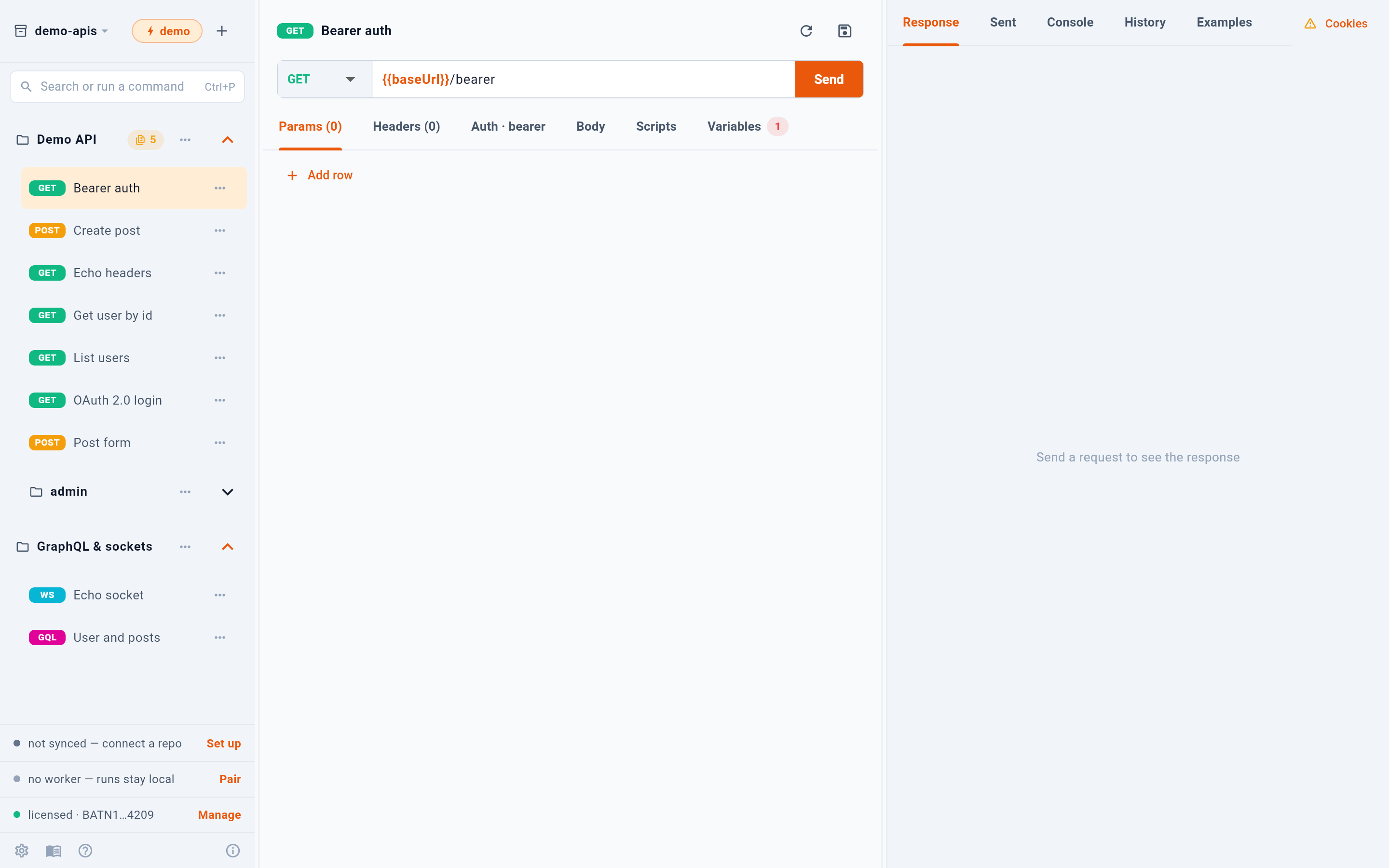
- Workspace, environment and new-item menu
- Collections and requests
- The request: method, URL and Send
- The response panel
- Sync, worker and license status
1 names the workspace and the active environment, and opens the menu for new collections and imports. 2 is the tree of collections and requests. 3 is the request itself — method, URL, Send, and the tabs under them. 4 is the response panel, which also holds what was actually sent, the console, the history and saved examples. 5 reports three things that are easy to forget: whether the workspace is synced, whether a worker is paired, and whether a license key is present.
2.1The sidebar
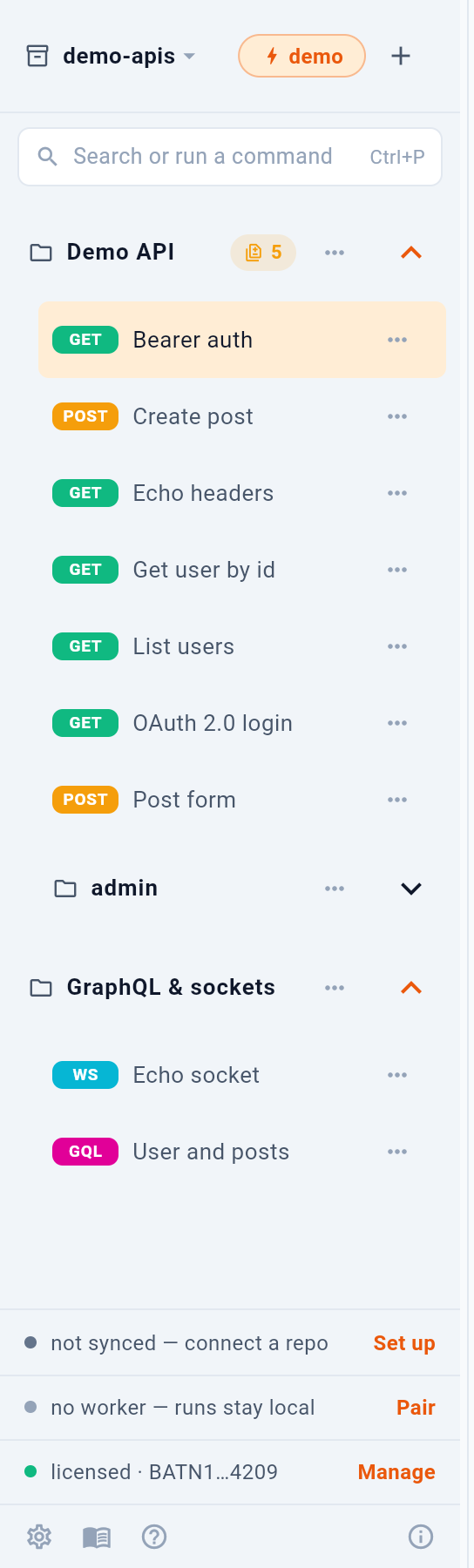
- Switch or create a workspace
- Active environment
- New collection, or import
- Command palette
- A collection — click to fold
The workspace name 1 opens the list of workspaces and the way to add one. The chip beside it 2 is the active environment: every {{variable}} in every request resolves against whichever one is selected here. 3 adds a collection or imports one. 4 opens the command palette, which is usually faster than the tree. A collection header 5 folds and unfolds.
2.2The command palette
Ctrl+P — Cmd+P on macOS — opens one list over everything else.
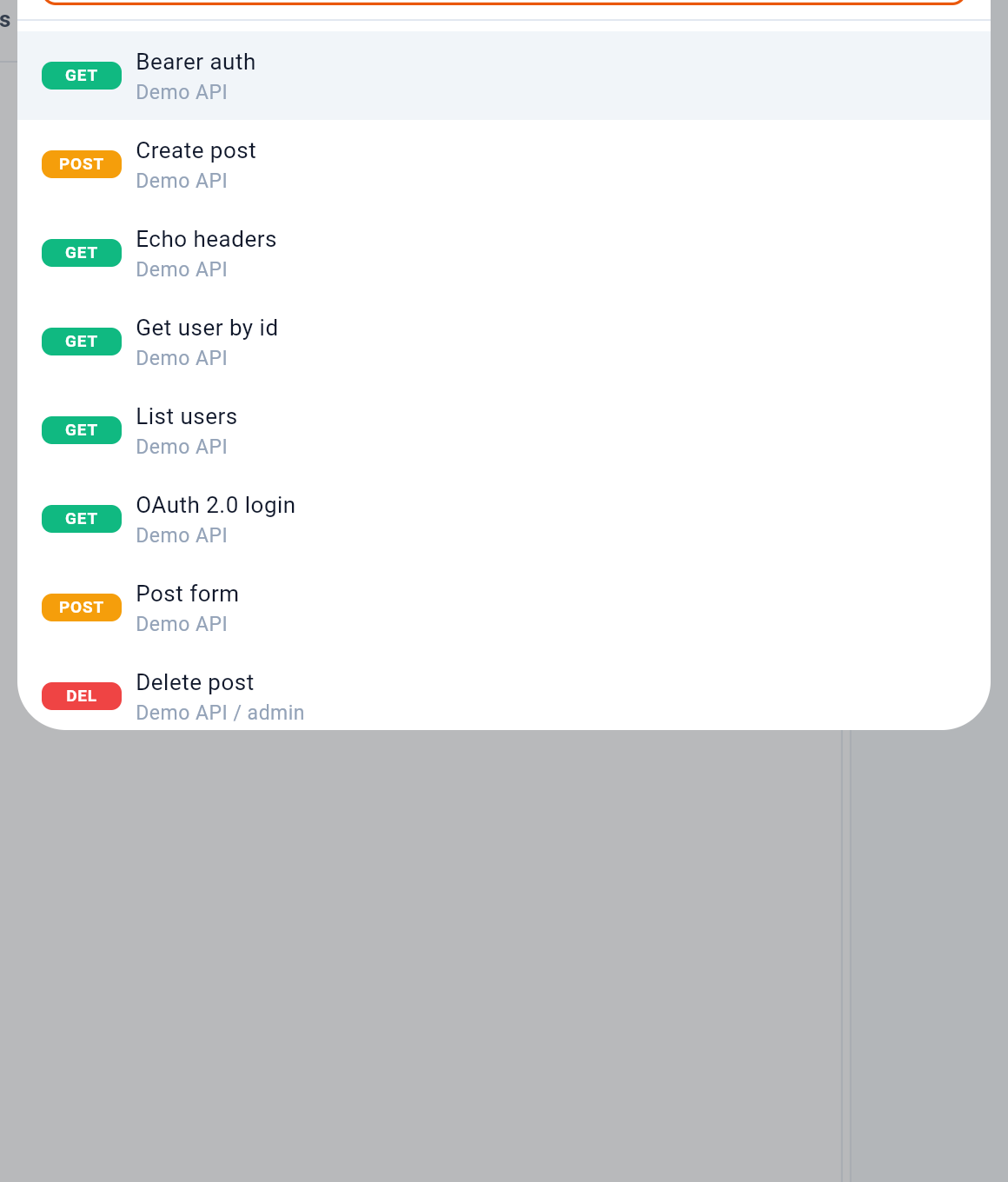
It lists every request with the collection it belongs to 1, including ones inside folded folders. Below them it offers to run a whole collection 2, and to jump straight to the variables and secrets of the active environment 3.
2.3The status rows
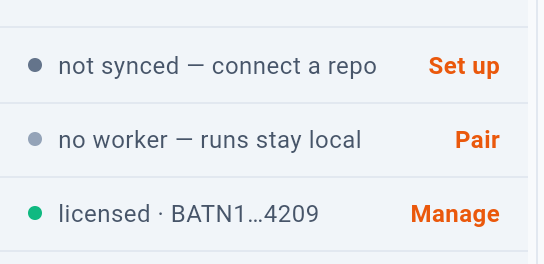
These are not decoration — each row is a button. 1 opens git sync, 2 opens worker pairing, 3 opens the license dialog. The row shows the state first and the action second, so a glance is enough.