 Baton
Baton Chapter 5
Sending a request
5.1The URL bar
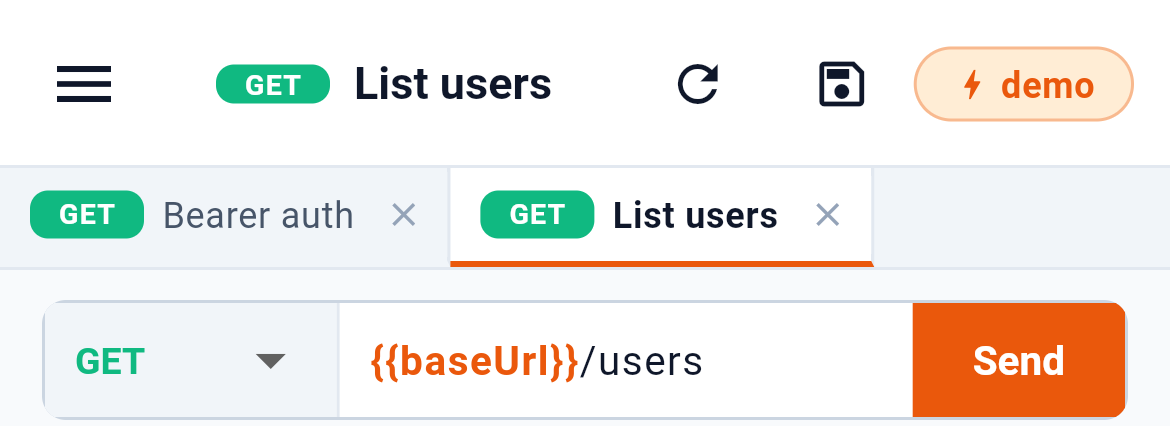
- Method
- URL, with {{variables}} highlighted
- Send — a square while it runs, which stops it
- Save to the workspace file
- Re-read the file, dropping edits
The method 1 is a menu. The URL 2 takes {{variables}}, and shows them in colour: orange when the reference resolves against the active environment, red and underlined when it does not — so a typo is visible before you send. 3 sends. 4 saves the request to its file, and 5 re-reads that file, dropping whatever is unsaved — on a phone both sit in the top bar.
5.2What the tabs hold

- Query string rows
- Request headers
- Authorization, or inherit it
- Body and its kind
- Scripts — the row scrolls for more
1 is the query string, as rows you can switch off individually rather than editing by hand. 2 is request headers, the same way. 3 is authorization, covered in Authorization 8. 4 is the body and its kind. 5 is the pre-request and test scripts, and the row scrolls sideways to Variables. A count in the tab label tells you a tab has something in it without opening it.
5.3The execution pipeline
Pressing Send runs five steps in a fixed order, and the same order runs on the worker when a schedule fires.

5.4Reading the response
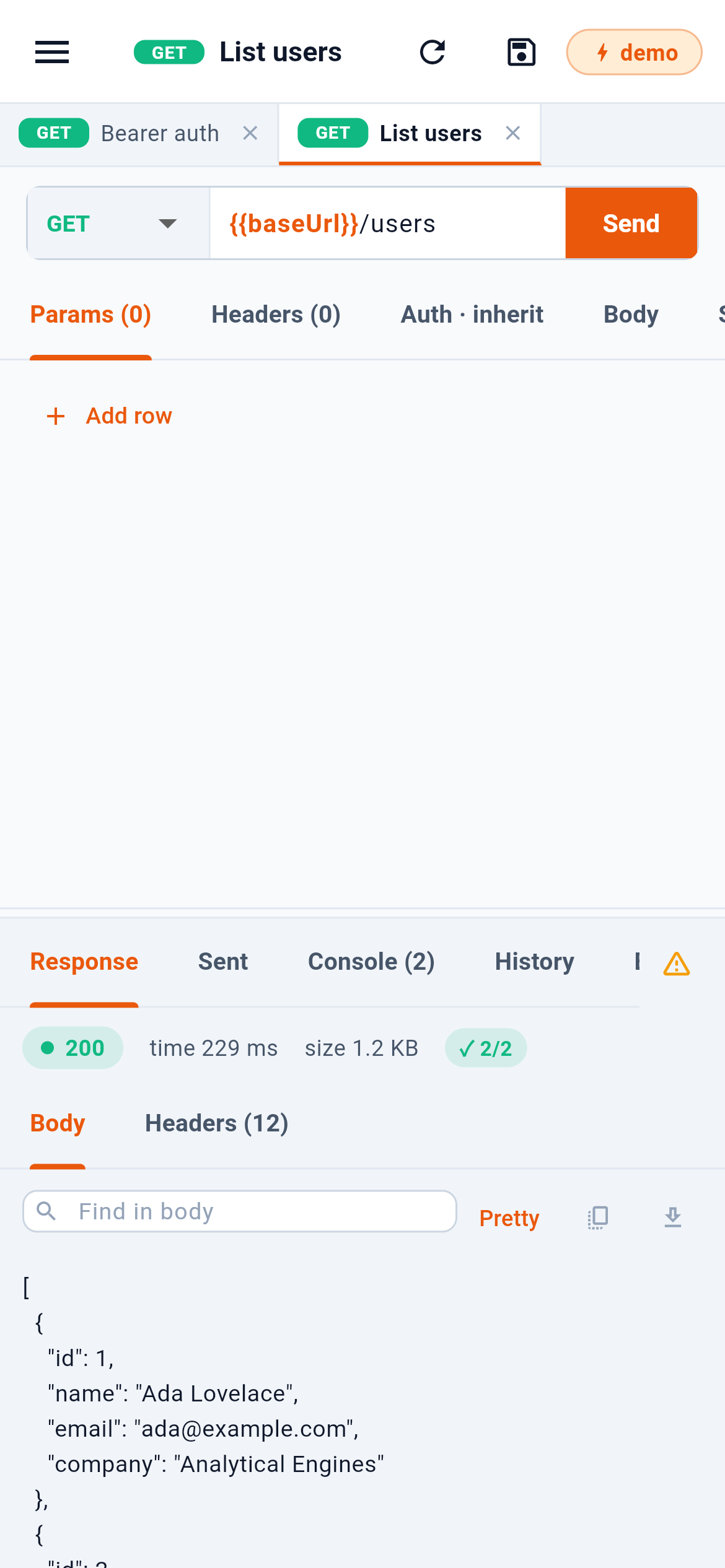
1 is the status, how long it took and how big it was, and at the end of the row a count of the tests that ran afterwards — green when they all passed. 2 searches inside the body, which is the fastest way through a long one. 3 pretty-prints the body, copies it, or saves it to a file.
5.5The other views of a run

- What came back
- What actually went out
- Script output and test results
- Earlier runs
- Saved examples — the row scrolls
1 is what came back. 2 is what actually went out — headers included, each labelled with where it came from, which settles arguments about whether a header was really sent. 3 is script output and test results. 4 is earlier runs of this request. 5, Examples, holds saved responses — see below — and past it, as the row scrolls, is the session cookie jar.
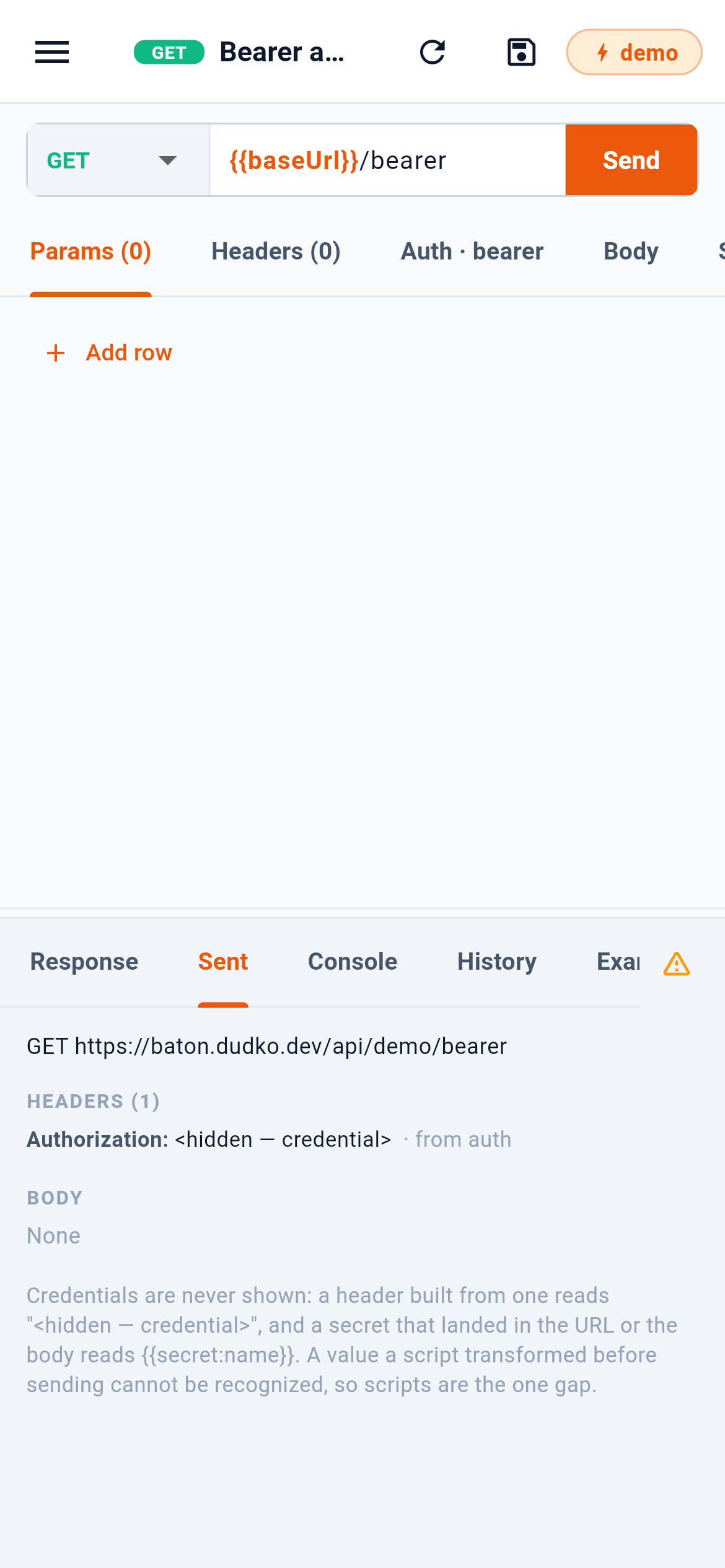
1 is the URL after every {{variable}} was resolved. 2 is a header Baton added from the request’s auth: the name and its origin are shown, the value is not. A secret that landed in a URL or a body reads back as {{secret:name}} for the same reason — this view exists to be pasted into an issue.
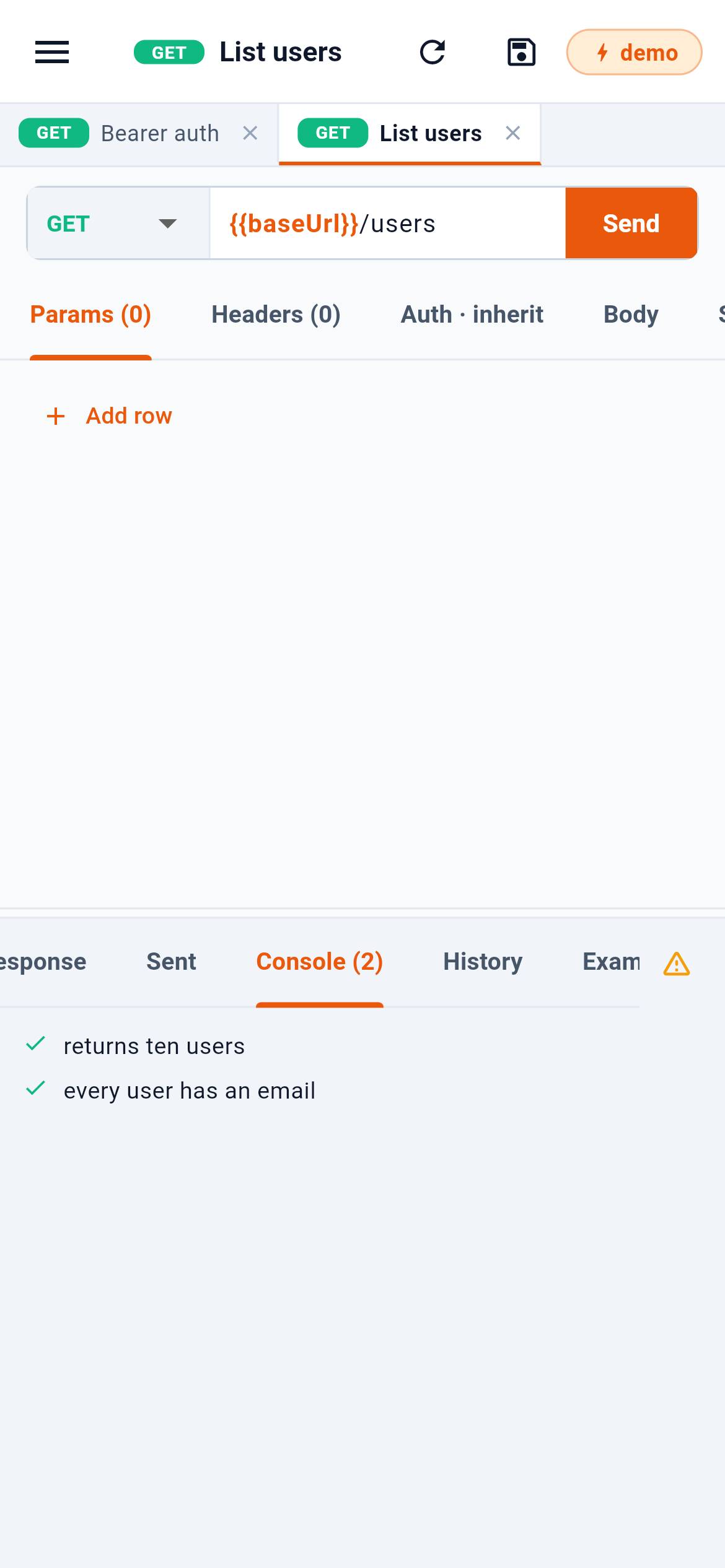
1 lists one line per test. A failing test names the expectation that did not hold, so the console is usually enough to see what changed.
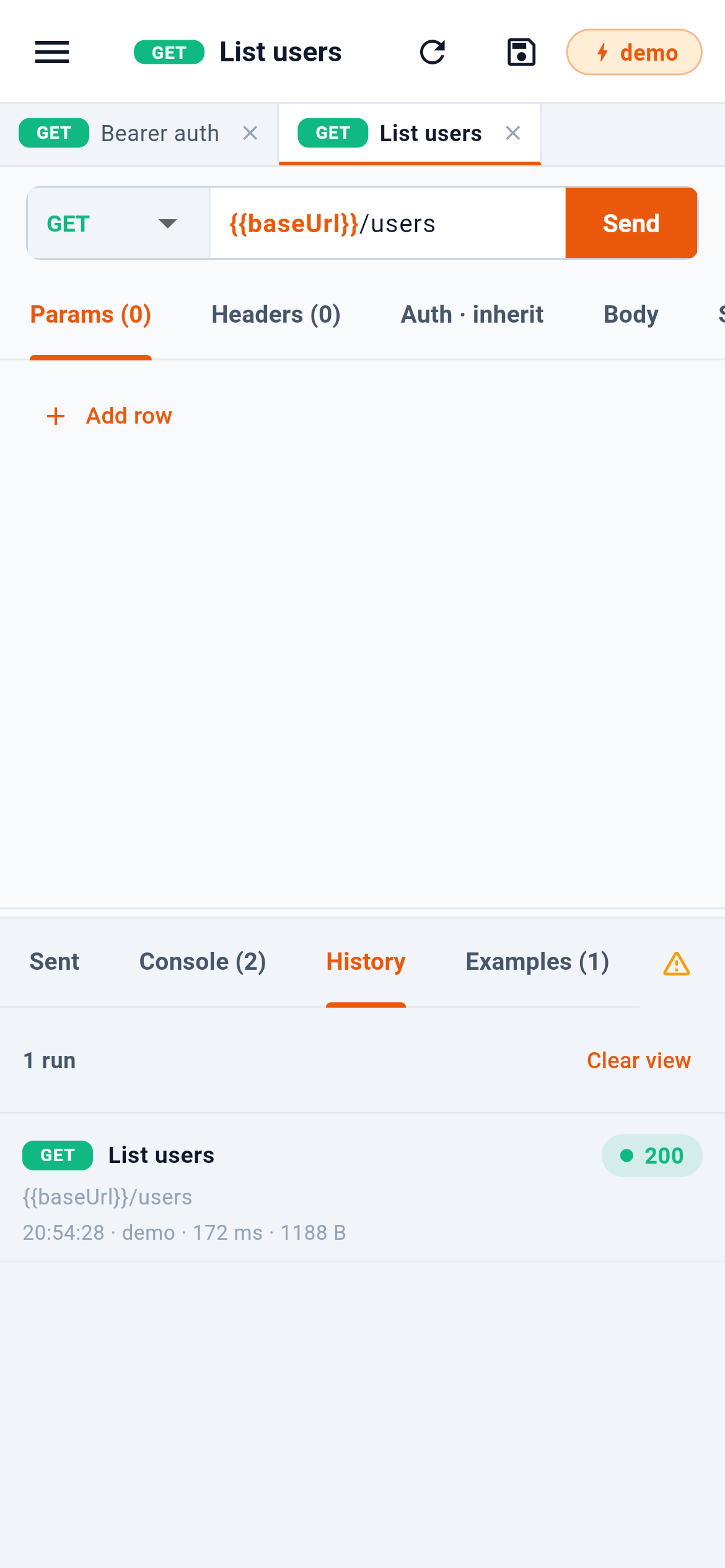
History is per request and kept in .baton/ inside the workspace — so it is yours, and it records the request as it was written, never as it was resolved. 1 empties the list. 2 is one run: the status, the environment it ran in, when, how long it took and how much came back.
5.6Saved responses
A response worth keeping can be saved as an example: its status, the headers worth replaying and its body, in a file of its own beside the request. Examples are what a mock server answers with (Section 13), what an AI agent reads to learn what an endpoint returns, and what an OpenAPI import fills in from the spec’s own examples.
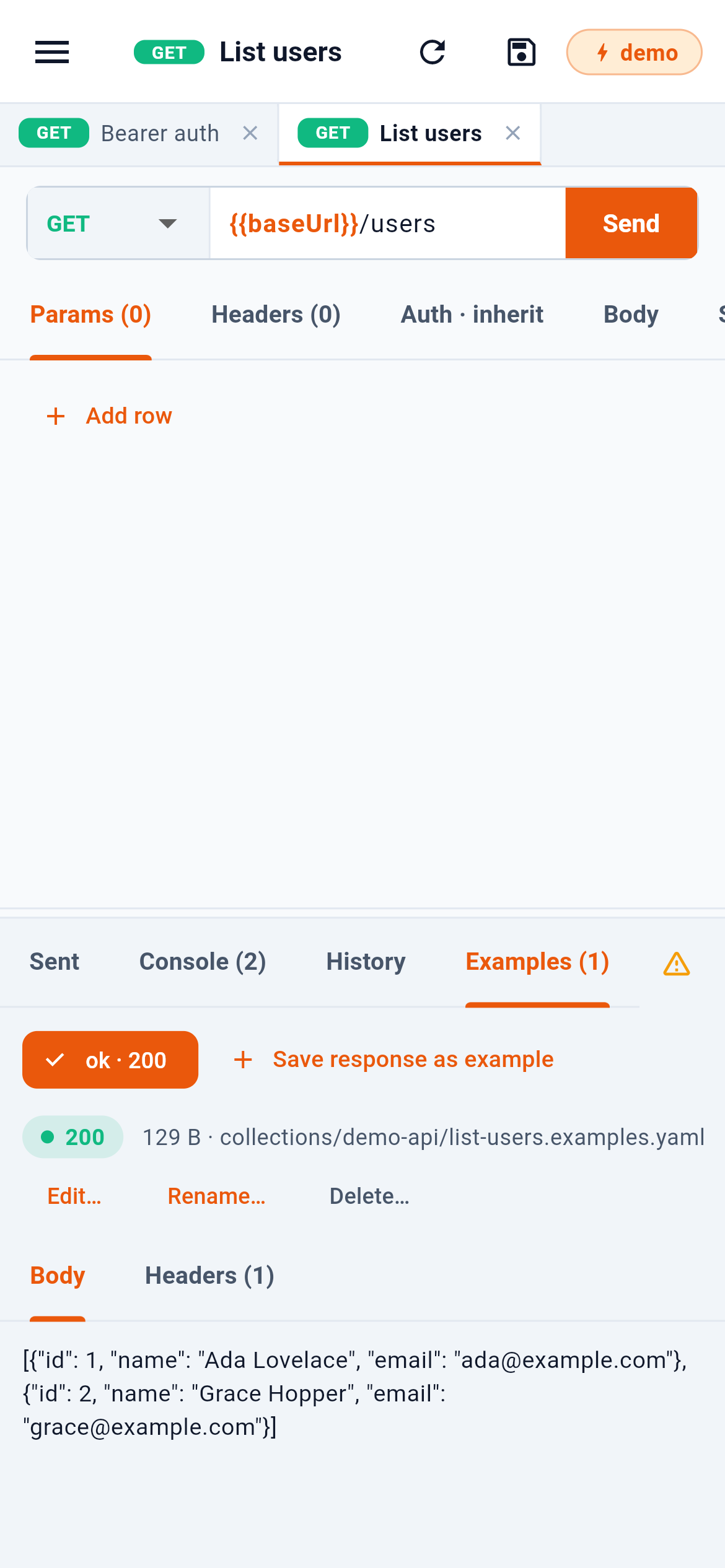
- The saved examples — tap one to see it
- Keep the response you just got
- A file of its own, beside the request
- Edit, rename or delete it
1 lists the saved examples by name and status; pressing one shows it. 2 saves the response you just received as a new one, with a name suggested from its status — ok for a 200. 3 names the file it lives in, list-users.examples.yaml next to the request’s own file, so saving an example never touches the request and shows up as a diff of its own. 4 edits the example on screen, and renaming and deleting sit beside it.