 Baton
Chapter 13
Flows
A collection run sends every request in tree order. A flow is for when the order is yours to set: log in first, read a value out of what it answered, go one way or another on it, run three calls side by side, walk a list one item at a time, and write down what happened. You build it on a canvas, and it is a file in your repository like everything else, flows/<slug>.flow.yaml.
Flows are listed under the collections, in the Flows part of the sidebar. New flow… in its + (or in the + beside the environment) asks for a name and opens an empty canvas. The demo workspace comes with one, User onboarding.
13.1The canvas
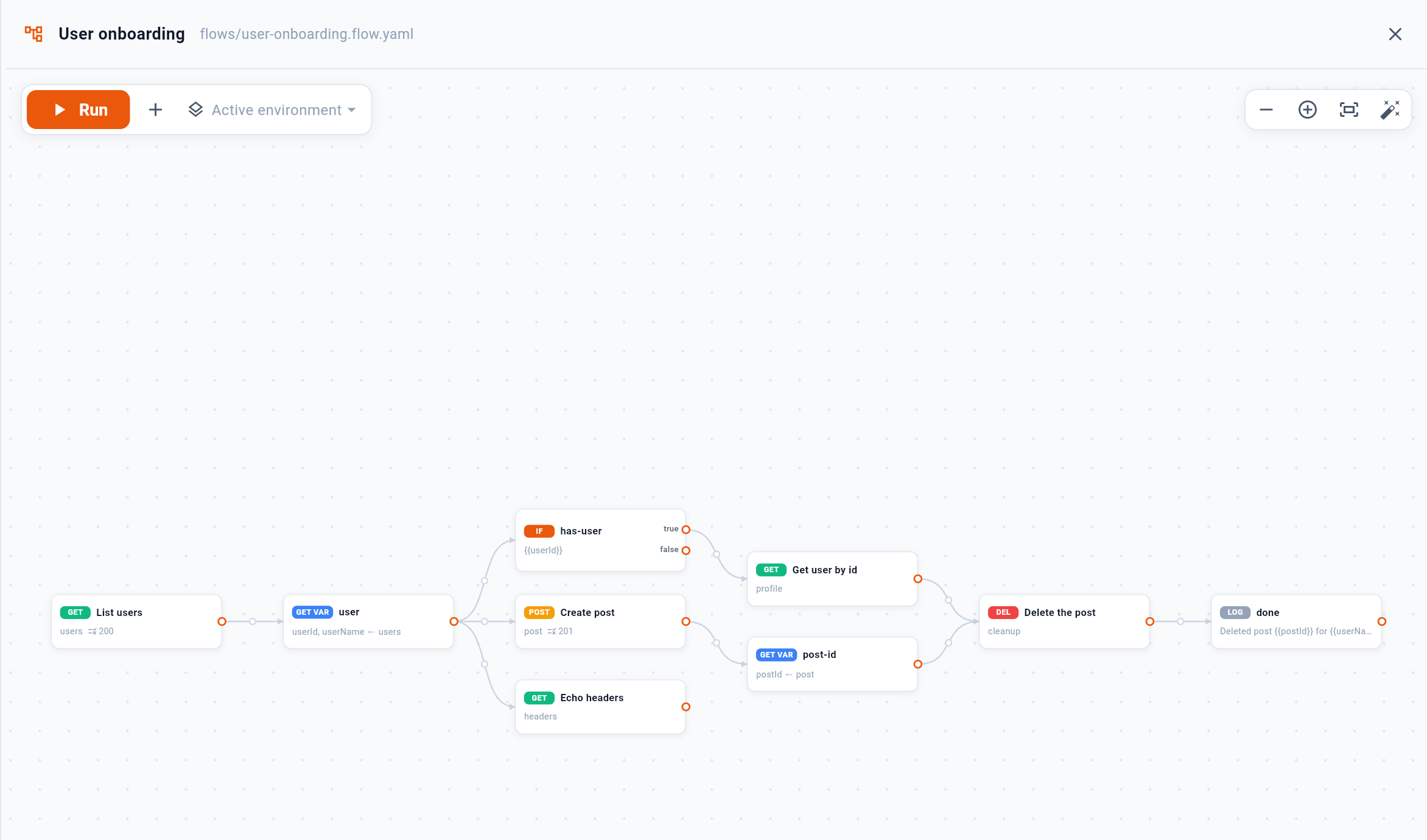
- Run the flow
- Add a step of any kind
- The environment it runs in
- Drag onto a step to link it, or click to add one after
- An If: a way out for true, one for false
- A join waits for every step before it
1 runs the flow. 2 adds a step: pick its kind, and it goes after the selected step if one is. 3 is the environment the flow runs in — see below.
Every card has an output port on its right edge, 4: drag it onto another card to make that one wait for this one, or click it to add a new step after it. A step with more than one way out — an If, 5, a Switch or a Loop — has a port for each, named beside it, and a link drawn from one waits on that way only. A card with more than one link coming in, 6, is a join: it waits until every step before it has settled.
Click a link, or the dot in its middle, to select it: it is highlighted, and the dot turns into a button that removes it. Delete removes a selected link too. Right-click an empty spot to add a step of any kind right there, and right-click a card to edit it, add a step after it, or delete it.
Drag a card to move it, drag the background (or scroll) to pan, and pinch or use the − and + buttons to zoom. The two buttons at the right frame the whole flow and arrange it again. With a card selected, Delete removes it, and Esc or a click on an empty spot lets it go.
13.2Kinds of step
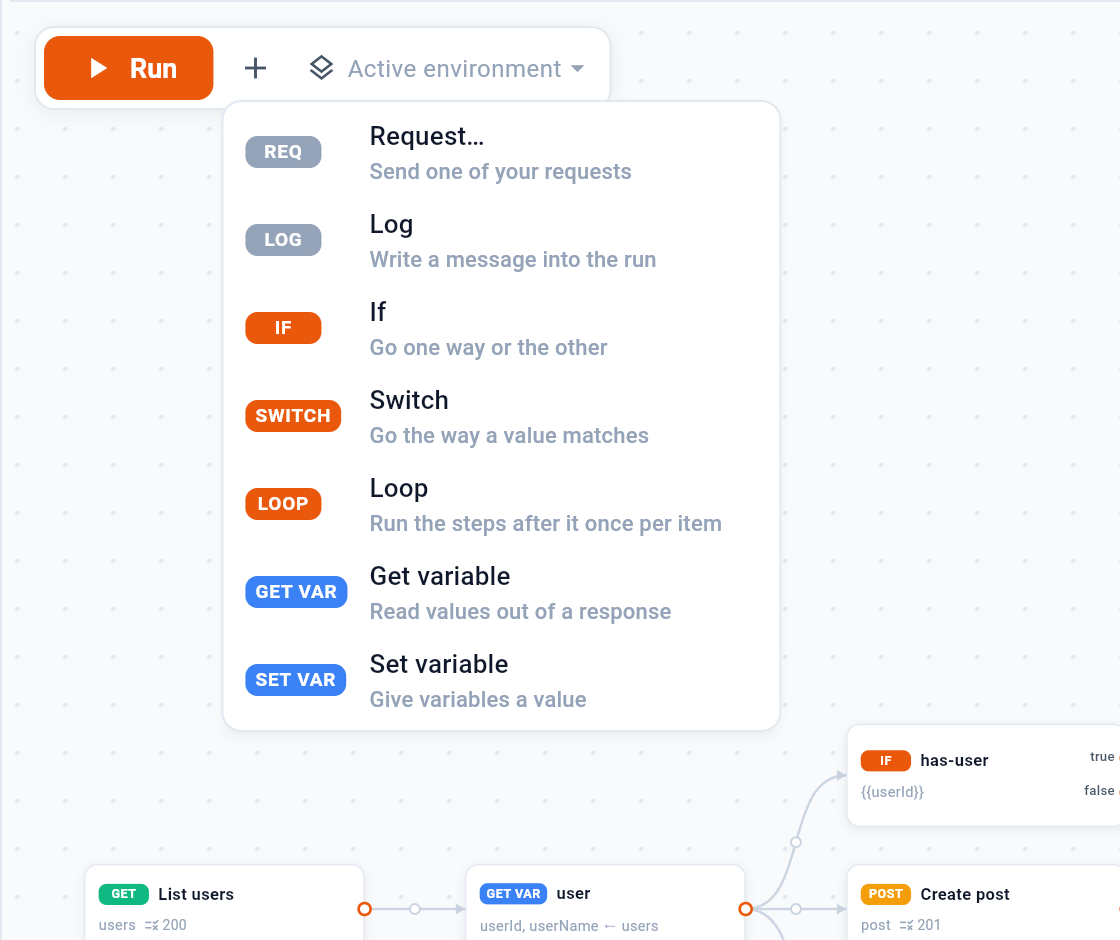
| Kind | What it does |
|---|---|
| Request | Sends one of your requests, the way Send sends it. |
| Log | Writes a message into the run — say, which post was made. |
| If | Goes on from true or from false, as a condition holds or not. |
| Switch | Goes on from the case that matches a value, or from default when none does. |
| Loop | Runs the steps after its each port once per item of a list, then goes on from done. |
| Get variable | Reads values out of a response the flow already has, for the steps after it. |
| Set variable | Gives variables a value, for the steps after it. |
Only a request sends anything. The other kinds take no time: each does its work the moment the steps before it are done.
Anywhere a step takes text, {{name}} reads a variable: the environment’s, and anything a step before this one read or set. {{steps.login.status}} is the status the step login answered, and {{steps.login.outcome}} whether it passed, failed or was skipped. A secret never reads in a Log, a Set, a condition or a loop’s list — those are written down, and a secret must not be.
13.3A step
Tap a card to open what it does — beside the canvas. Every kind has a name for the canvas and Runs after, the steps it waits for, as chips to switch on and off; one that would close a loop is greyed out, since a flow never runs in a circle.
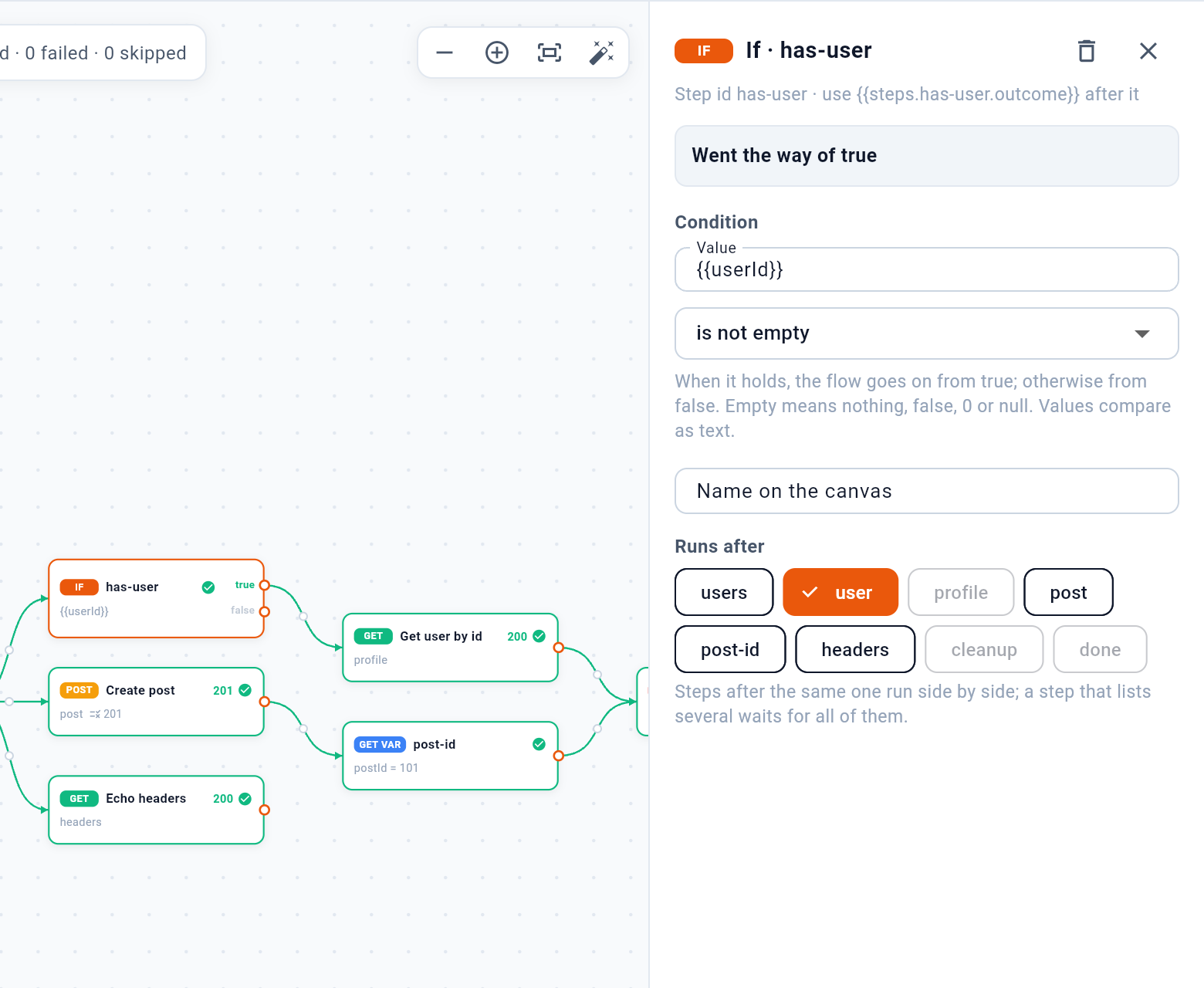
1 is the step’s last run — for an If, the way it went. An If is three parts: 2 the value to look at, 3 how it is tested — is not empty, is empty, equals or does not equal — and, for the last two, what to compare it to. Empty means nothing, false, 0 or null; values compare as text. 4 is Runs after.
The other kinds:
- Request — the request it sends (tap it to pick another), the Expected status — a code such as
201or a class such as2xx; empty, anything below 400 passes — and Keep going if this fails. - Log — the Message. It shows on the card and in the step’s result after a run.
- Switch — the Value, and Cases: each a name on the left, which is the way out of the step, and the text it matches on the right. The first case equal to the value is taken; when none is, default is. Renaming a case keeps its links.
- Loop — Items, a JSON list, usually a value a Get variable step read. The steps after each run once for every item, one item at a time, with
{{item}},{{item.id}}(any path into the item) and{{index}}, from0; the steps after done run once, at the end. An item sees nothing from the one before it. A failure inside stops the loop. - Get variable — the request step to read, From the response of, and Values: a name, and a dotted path into the JSON body —
items.0.idis the first item’sid. The steps after it read each one as{{name}}. - Set variable — names and values; a value may use other variables, as
Page {{page}}does.
13.4Running it
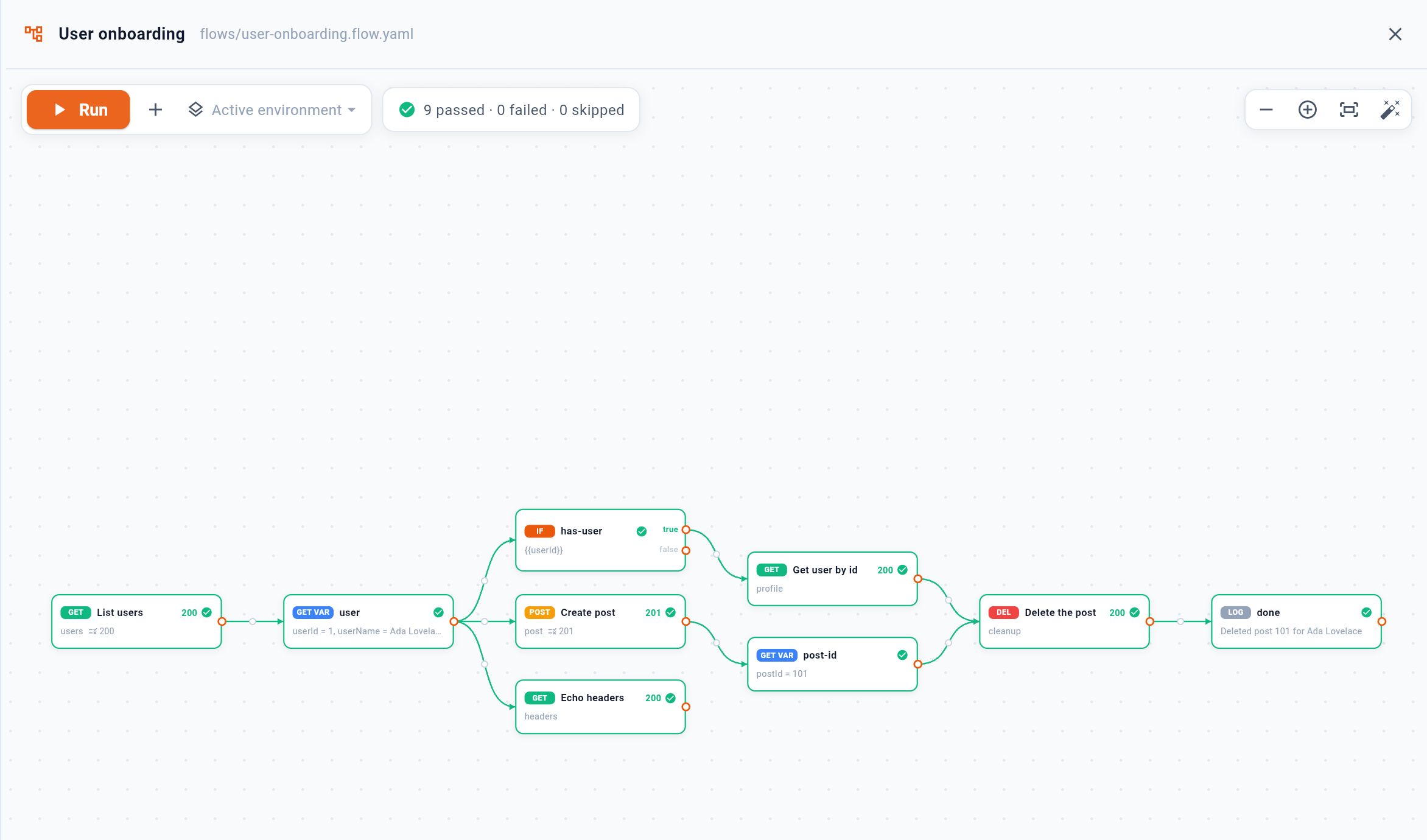
1 counts what passed, failed and was skipped. Each request, 2, shows the status it answered and whether that counts as a pass. An If, 3, marks the way it went, and the steps the other way are drawn faded; a Log, 4, shows what it wrote. Links turn green or red with the step they come from, and while a request waits for an answer, dots move along the link into it.
Every request is sent the way Send sends it: with its collection’s auth and variables, and its own scripts and tests. It fails when it cannot be sent, when a test fails, or when its status is not the one it expects — any status of 400 or more, unless you set another. Inside a loop, a step’s result shows one chip per item.
When a step fails, the steps that wait for it are skipped, and the rest of the flow goes on. A step marked Keep going if this fails does not stop the steps after it, and does not fail the flow. Two steps side by side never see each other’s values, so which one answers first cannot change the result.
13.5The environment it runs in
A flow runs in the environment that is active, unless you choose one for it in the toolbar (3 in the first picture). A flow with its own environment always uses that one’s variables and secrets — whichever is active — and the choice is saved in the flow file, so a teammate’s run and the worker’s do the same. Values a run read or set stay for the session, the same as values a script sets; a run in a flow’s own environment leaves the active one’s session alone.